Table of Contents
To maintain peak system stability, you must update Windows 11 safely on a regular basis. While these patches deliver vital Windows 11 security patches and performance fixes, an interrupted installation can lead to unexpected errors. By preparing your storage and verifying your settings, you ensure a seamless transition to the latest version of your operating system.
Why You Must Update Windows 11 Safely
Windows 11, the latest iteration of Microsoft’s operating system, emphasizes the importance of regular updates for maintaining optimal performance and security. Keeping Windows 11 updated is critical as it not only introduces new features but also includes essential bug fixes that can improve your computing experience. Regular updates help to enhance system stability, ensuring that your device operates smoothly without unexpected crashes or performance hiccups.
One of the significant benefits of regularly updating Windows 11 is the enhanced security measures that each update provides. Cyber threats and malware are continually evolving, and an outdated operating system can leave your device vulnerable to attacks. Updates often include patches that address newly discovered security vulnerabilities, helping to protect your personal information and sensitive data. By prioritizing these updates, users can significantly reduce the risks associated with potential security breaches.
In addition to security upgrades, Windows 11 updates often introduce new features that can enhance user productivity. These features might include improved accessibility options, user interface tweaks, and better integration with other Microsoft services. Staying current with updates ensures that you benefit from the latest innovations and enhancements that Microsoft has to offer, thus improving your overall experience with the operating system.
However, it is essential to perform updates safely to avoid any disruptions or issues. Users should ensure that their data is backed up and that they are connected to a stable internet connection before initiating the update process. This precaution helps mitigate any potential problems that may arise during the update, ensuring a seamless transition to the latest version of Windows 11.
Back Up Data for Windows 11 Preparation
Before proceeding with the update to Windows 11, it is crucial to back up your data. This step serves as a safeguard against any potential loss of important files or information during the update process. There are several methods you can utilize to ensure that your data remains secure.
One effective option is using File History, a built-in feature in Windows that automatically backs up your files. To enable File History, navigate to the Settings menu, click on “Update & Security,” then select “Backup.” From here, you can choose an external drive or network location to store your backups. File History will continuously monitor the folders you select and back them up periodically, giving you peace of mind that your files are secure.
An alternative method is creating a System Image, which captures the entire state of your system at a specific point in time. This includes not only your files, but also your applications, settings, and system files. To create a System Image, go to the Control Panel, and select “Backup and Restore (Windows 7).” Click on “Create a system image” on the left sidebar. Follow the on-screen instructions to choose a backup location and initiate the image creation.
Lastly, consider utilizing cloud storage services, such as OneDrive or Google Drive. These platforms allow you to upload your essential files to the cloud, ensuring that they are accessible from any device and protected from local hardware failures. Simply sign in to your preferred cloud service and upload the files you want to back up.
By taking these precautions, you will ensure that your important data remains intact and secure, facilitating a smooth transition to Windows 11.
Checking Update Settings in Windows 11
To ensure a seamless updating process in Windows 11, it is crucial to check your update settings. Begin by opening the Settings application; this can be done by clicking on the Start Menu and selecting the gear icon, or alternatively, by pressing Windows + I on your keyboard. Once in the Settings menu, navigate to the Windows Update section, which is typically found towards the bottom of the left sidebar.
Adjusting Automatic Update Preferences
Within the Windows Update settings, you will find options to manage your update preferences. You can choose to enable automatic updates, which is generally recommended to ensure your system receives security patches and enhancements without delay. To do this, locate the Advanced options within the Windows Update settings, where you can toggle the automatic updates feature. Enabling this setting will allow Windows 11 to download and install updates on its own, keeping your system secure with the latest software enhancements.
Delaying Updates When Necessary
There may be instances when you prefer to delay updates, particularly if you are in the middle of important tasks or if you wish to wait for potential issues to be resolved in newer updates. In such cases, the Windows Update settings allow you to pause updates for a specified period. This can be accomplished by selecting the Pause updates option found in the main Windows Update settings, where you can choose a timeframe. However, it is advisable to select a delay that is reasonable to ensure your system maintains up-to-date security and functionality.
Recommended Update Times
Finally, to minimize disruptions during the update process, it is wise to schedule installation times that align with your usage patterns. You can adjust the active hours setting, allowing Windows 11 to automatically schedule updates during times when the device is not in regular use. Setting up these preferences not only enhances your experience but also ensures that your updates occur seamlessly and without significant interruptions to your daily tasks.
Preparing for the Update: Storage and Restart Issues
To ensure a safe and successful update to Windows 11, it is crucial to prepare your device adequately. One of the primary factors to consider is the availability of sufficient storage space. Windows 11 requires a certain amount of free hard drive space for the update process, typically around 20 GB. To check your current storage, access the Settings application by clicking on the Start menu, then select “Settings.” From there, navigate to “System” and click on “Storage.” This section will show you an overview of your storage usage.
If you find that your storage is running low, consider removing unnecessary files or applications. Start by clearing temporary files through the “Storage Sense” feature found in the Storage settings. Additionally, explore large files you may no longer need by using the “Storage usage by apps” section. This allows you to identify applications that consume significant amounts of space and decide whether to uninstall them or clear cached data, thereby freeing up storage.
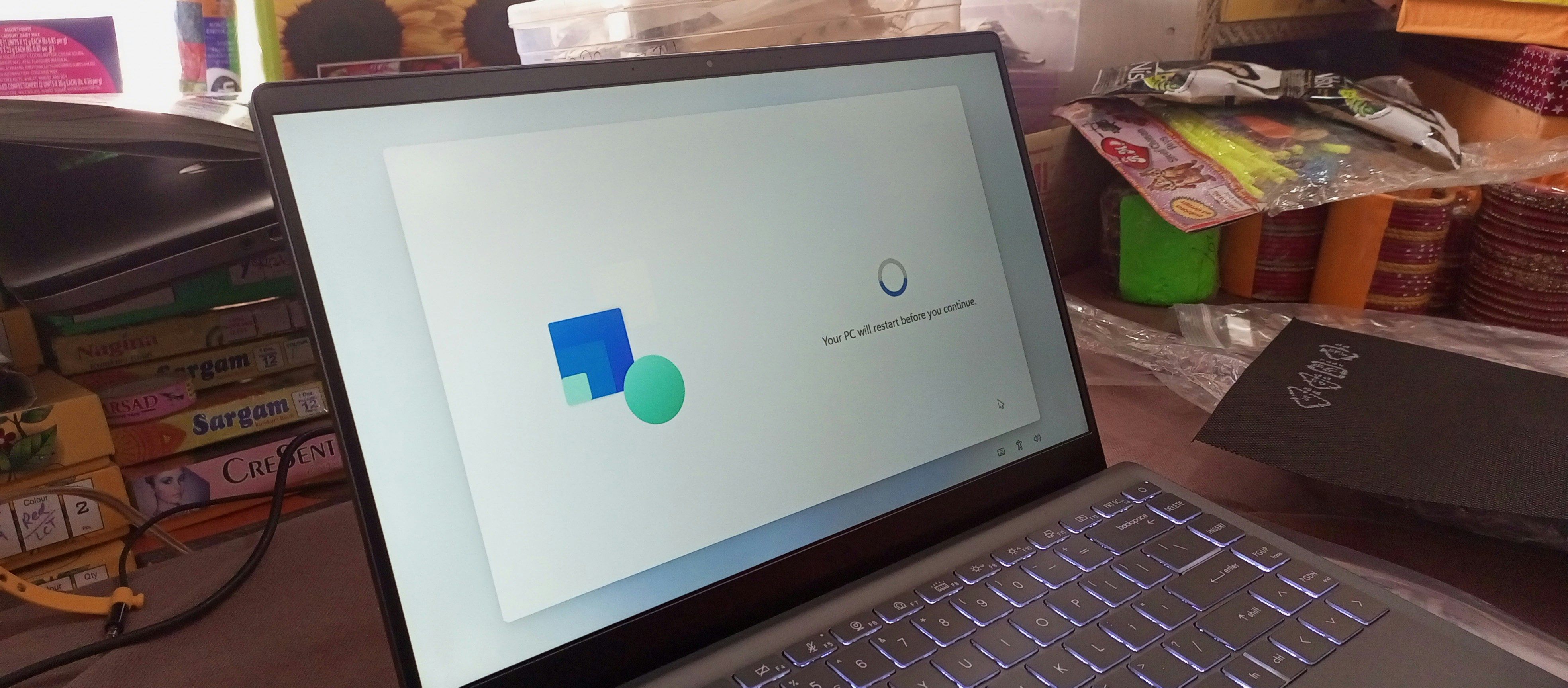
Furthermore, common restart issues may arise during the update process, which can hinder your device’s ability to install the new operating system successfully. If your computer stalls during a restart, try performing a hard reset by holding down the power button until the computer shuts down. Once powered back on, it will automatically attempt to continue the update.
If the problem persists, booting into the safe mode may help. Access this by navigating to the recovery options in the Settings application, selecting “Troubleshoot,” followed by “Advanced options,” and then “Startup Settings.” Here, you can enable Safe Mode. This mode often allows you to troubleshoot and resolve update-related issues without interference from third-party applications.
If you need to refresh your network after these system changes, see our guide on how to reconnect Wi-Fi after router restart.
For official assistance with installation errors, visit the Microsoft Windows Update Support page.