Blog

  • How to Reconnect Wi-Fi After Router Restart

    How to Reconnect Wi-Fi After Router Restart

    Understanding Router Restart Effects on Connected Devices

    When a router is restarted, several significant changes occur within the local network that affect all connected devices. Primarily, a router facilitates communication between devices and the internet, acting as a gateway for data transmission. Upon restart, the router clears its temporary memory, also known as the cache, where it stores essential routing information. This ensures that the system begins anew, potentially resolving connectivity issues or improving performance.

    One immediate effect of restarting the router is that all connected devices may lose their internet connection. As the router resets, it may take a brief period for it to become fully operational again. Devices that were previously connected to the network will need to re-establish their connections, which can lead to temporary disconnection symptoms. Users may notice that their smartphones, tablets, or computers trigger a message indicating they are not connected to the internet, even though the devices were operating normally prior to the restart.

    Furthermore, the router’s settings and configurations are essential for maintaining stable connections. For instance, if a device is set to use DHCP (Dynamic Host Configuration Protocol) for obtaining an IP address, it will require a new lease from the router after a restart. Devices may face delays or failures in connectivity stemming from this process. On the other hand, connections set with a static IP might face fewer issues but can still be impacted by any changes in router settings during the restart.

    In essence, a router restart is a crucial function that can enhance network performance but may also temporarily disrupt connectivity for all devices linked to the network. Understanding these impacts can help users anticipate possible issues and take proactive steps to reconnect their devices effectively after the router is rebooted.

    Step-by-Step Device Reconnection Guide

    In the event of a router restart, reconnecting your devices to the Wi-Fi network can be a straightforward process if followed step-by-step. Below is a guide tailored for common devices such as smartphones, laptops, and smart home appliances.

    Smartphones: To reconnect your smartphone to Wi-Fi after a router restart, begin by unlocking your device and navigating to the Settings application. Within the settings menu, locate the Wi-Fi option and tap on it to view available networks. Select your Wi-Fi network from the list and input the password, if prompted. Once your device shows as connected, test the connection by browsing the internet or using an app that requires Wi-Fi.

    Laptops: When reconnecting a laptop to Wi-Fi, click on the network icon in the system tray, usually located at the bottom right corner of the screen. This action will display a list of available networks. Choose your specific Wi-Fi network and, if necessary, enter the appropriate password. After a successful connection, ensure that your laptop can access the internet by opening a web browser.

    Smart Home Devices: For devices such as smart speakers, smart TVs, or security cameras, refer to the specific manufacturer’s app for reconnection. Most smart devices will automatically attempt to reconnect to the last known network upon a router restart. However, if they do not, open the respective app and follow the prompts to connect to your Wi-Fi network. This may involve ensuring the device is powered on, checking Wi-Fi settings, and confirming passwords.

    By following these systematic steps, you can effectively reconnect any of your devices to the Wi-Fi network, ensuring smooth operation following a router restart.

    Checking Network Settings and DNS Configuration

    After a router restart, it is essential to verify the device’s network settings to ensure that your connection is correctly configured. The first step involves accessing your device’s network preferences, which can typically be found in the Settings menu. Look for the section labeled “Network” or “Wi-Fi” to see if your device is still connected to the desired network. If not, select the appropriate Wi-Fi network and re-enter the password if prompted.

    In some cases, your device may automatically reconnect without assistance, but there may be instances where manual intervention is required. It is crucial also to check whether the network adapter is enabled; this can usually be accomplished within the same settings menu. If the adapter is disabled, enabling it should restore your connection.

    An important aspect of troubleshooting connectivity issues involves reviewing the DNS (Domain Name System) settings. Sometimes, the default DNS settings can lead to inefficient browsing or failed connections, especially after changes made during a router restart. To check your DNS configuration, navigate to the network settings of your device and look for the option labeled “DNS.” Here, you’ll have the option to specify an alternative DNS server.

    Popular public DNS services include Google’s Public DNS (8.8.8.8 and 8.8.4.4) and Cloudflare’s DNS (1.1.1.1). Entering these addresses can help resolve connectivity issues that arise due to misconfigured DNS settings. Once these changes are made, remember to save your settings and restart your device to see if connectivity returns to normal.

    Re-adding the Wi-Fi Network on Devices

    After restarting the router, it is not uncommon for devices to experience issues reconnecting to the Wi-Fi network. Should such problems arise, it may be necessary to re-add the Wi-Fi network manually on the device. Below, we outline the steps to effectively forget the existing connection, scan for available networks, and reconnect using the correct password.

    To begin with, access the settings menu on your device. The exact path may vary depending on the device type. For instance, on a smartphone, navigate to the Wi-Fi settings section. Here, you will see a list of available Wi-Fi networks. Locate your existing Wi-Fi network and select it. Once highlighted, there should be an option to “Forget this network.” By selecting this option, the device will remove the saved configurations associated with the Wi-Fi network.

    After forgetting the network, the next step is to scan for networks. Many devices will automatically initiate a scan for available Wi-Fi networks once you are in the Wi-Fi settings menu. If it does not, look for a button labeled “Scan” or simply enable the Wi-Fi toggle to begin the scanning process manually. When the scanning is complete, your Wi-Fi network should appear in the list of available connections. If multiple networks are present, ensure to select the correct one to avoid connecting to a neighbor’s or public Wi-Fi.

    Upon selecting the correct Wi-Fi network, you will be prompted to enter the password. It is crucial to input the password accurately, as even minor typographical errors can result in a failed connection. Once the correct password is entered, the device should attempt to establish a connection. If successful, your device will reconnect to the Wi-Fi network, allowing hassle-free internet access once again.

  • Essential Tips to Improve Wi-Fi Signal in Your Home

    Essential Tips to Improve Wi-Fi Signal in Your Home

    Understanding Wi-Fi Signals and Their Importance

    Wi-Fi signals are a crucial aspect of modern connectivity, facilitating seamless access to the internet without the constraints of physical cables. At their core, these signals are radio waves transmitted by a device known as a router, which communicates with Wi-Fi-enabled devices such as smartphones, tablets, and laptops. The strength and quality of these signals significantly impact the overall internet experience, making them central to daily tasks and activities.

    A strong Wi-Fi signal is essential for various activities prevalent in contemporary life, including streaming video content, online gaming, and engaging in remote work. For instance, high-definition video streaming requires substantial data transfer, which can be severely hampered by weak signals. Consequently, interruptions such as buffering or decreased image quality may arise, undermining the viewing experience. Similarly, in gaming, a stable and strong signal is necessary to prevent lag and ensure real-time interactions, which are vital for competitive play.

    Moreover, remote work has become increasingly common, amplifying the need for dependable internet access. Many individuals rely on video conferencing tools, collaborative platforms, and cloud services that depend on stable Wi-Fi connectivity. Inconsistent signals may lead to dropped calls and delays, ultimately affecting productivity and communication.

    Several factors can impact Wi-Fi performance, including physical obstructions such as walls, interference from other electronic devices, and the distance from the router. Understanding these elements is fundamental to optimizing home Wi-Fi networks. By acknowledging the variables at play, homeowners can take proactive measures to enhance the strength of their Wi-Fi signals, thereby improving their overall online experience.

    Optimal Router Placement for Enhanced Signal Strength

    To maximize Wi-Fi coverage throughout your home, optimal router placement is crucial. The location of your router can significantly influence the signal strength and, consequently, the internet experience in every room. A common oversight is placing the router in a corner or along a wall. Ideally, routers should be positioned centrally in your home. This central placement helps distribute the signal evenly to all areas, minimizing dead spots.

    Height also plays a vital role in the effectiveness of your Wi-Fi signal. Elevating the router can improve signal reach, so consider placing it on a high shelf or mounting it on a wall. This elevation allows the signal to propagate more freely through your living space, mitigating interference caused by furniture or other objects. Additionally, distance from walls can impact performance; routers placed too close to walls may experience reduced output. A good rule of thumb is to keep the router away from any obstructions, allowing for a better line of sight to connected devices.

    Another aspect to consider is the floor plan of your home. Multi-story homes may benefit from strategically placing additional access points or routers on different floors to ensure coverage in previously difficult areas. Additionally, minimize the impact of electronic devices that may cause interference, such as microwaves or cordless phones. Understanding these factors and implementing superior router placement can significantly enhance your Wi-Fi signal strength, ensuring a smoother internet experience for all users in your home.

    Identifying and Mitigating Interference from Walls and Appliances

    Wi-Fi signals can effectively be stunted by various physical barriers present in a typical household. Understanding how walls and household appliances interfere with Wi-Fi signals is essential for optimizing connectivity. Different materials exhibit unique effects on signal absorption and reflection, significantly influencing the strength of your network.

    Concrete and brick walls are notorious for obstructing Wi-Fi signals due to their density, which can absorb and weaken radio waves. On the other hand, metal objects, such as large appliances, can cause reflection, leading to disrupted signal paths. Wood, while less obstructive than concrete or metal, can still attenuate signals depending on its thickness and density. This interplay of materials highlights the importance of strategic placement of both routers and connected devices within the home.

    To mitigate these interferences, several practical solutions can be implemented. First, consider repositioning your Wi-Fi router to a central location within your home, ideally elevated to minimize the number of walls the signal must traverse. This adjustment can often enhance coverage and reduce the barriers encountered by the signal.

    In addition to repositioning, utilizing Wi-Fi extenders can enhance coverage in areas that are particularly affected by interference. These devices act as a relay, boosting the signal further into areas with weak connectivity. Alternatively, if possible, consider employing physical barriers that can redirect or absorb the signals more effectively. For instance, placing your router away from large metal appliances or using acoustic panels can significantly improve signal quality.

    Ultimately, awareness of how walls and appliances impact Wi-Fi performance allows homeowners to take informed steps to bolster their wireless networks. By employing strategic positioning, using extenders, and incorporating thoughtful changes in the home environment, one can minimize the disruptive effects of various materials and enhance the overall Wi-Fi experience.

    Utilizing Wi-Fi Extenders and Mesh Systems

    To enhance Wi-Fi coverage in your home, utilizing Wi-Fi extenders and mesh network systems can prove to be effective solutions. Wi-Fi extenders function by capturing and amplifying the existing Wi-Fi signal, thereby extending its reach into areas where connectivity may be weak. They are particularly useful in larger homes or spaces with physical barriers such as walls that can interfere with signal strength. The installation of a Wi-Fi extender typically requires a simple setup process, involving plugging the device into a power outlet and following a few on-screen instructions for configuration.

    On the other hand, mesh network systems consist of multiple devices, called nodes, which work in tandem to create a unified Wi-Fi network throughout your home. Unlike extenders that boost an existing signal, mesh systems provide seamless connectivity by communicating with one another. This allows for consistent internet speed and coverage in larger spaces, alleviating the frustration of dead zones. Setting up a mesh network may require a little more effort, as it often involves strategically placing the nodes around your home.

    When deciding between a Wi-Fi extender and a mesh system, consider the size of your home, the number of devices connected to your network, and your specific usage needs. For users in smaller homes or apartments, a Wi-Fi extender might suffice for improving the signal in certain areas. In contrast, those living in larger residences, or who require high bandwidth for activities like gaming or streaming, may find a mesh network system to be a more appropriate solution. Both options present valuable ways to enhance your home Wi-Fi signal, ensuring reliable connectivity throughout your living space.

  • How to Set Up a Home Wi-Fi Network from Scratch

    How to Set Up a Home Wi-Fi Network from Scratch

    Understanding Your Internet Connection and Modem

    To establish a reliable home Wi-Fi network, it is essential to grasp the fundamentals of your internet connection and the role of the modem in your network setup. The primary types of internet services you may encounter include Digital Subscriber Line (DSL), cable, and fiber optic connections. Each type utilizes different technologies to deliver internet service, which affects speed, reliability, and overall performance.

    DSL utilizes existing telephone lines to provide an internet connection. It generally offers lower speeds compared to cable and fiber but can be sufficient for everyday usage such as web browsing and stream video content on one or two devices simultaneously. In contrast, cable internet works over coaxial cables, often used for cable television services. It can provide faster speeds than DSL, making it a popular choice for families or households with several internet-users needing extensive bandwidth.

    Fiber optic internet represents the latest technology, transmitting data as light through thin strands of glass or plastic. This type offers the highest speeds and greatest reliability, making it ideal for heavy users who require swift download and upload capabilities. Evaluating which service is available in your area and the type that would best suit your needs is essential.

    The modem in your setup is a critical device that translates the digital signals from your ISP into an analog signal your home network can understand. Identifying which type of modem you have is straightforward; most devices will have a label indicating the model and specifications. Standard modems will connect directly to your ISP via a coaxial or phone line, while modem/router combos integrate both functionalities into one device. Understanding the workings of your modem will enhance your ability to troubleshoot any issues and ensure an efficient and effective home Wi-Fi network.

    Installing Your Router

    Installing your Wi-Fi router properly is essential for establishing an effective home network. The first step is to choose an optimal location for your router. Ideally, the router should be positioned in a central area of your home, away from walls, large appliances, and electronic devices that might cause interference. Placing the router high off the ground, such as on a shelf, can also enhance coverage, allowing the signal to propagate better throughout your living space.

    Once you have selected a suitable location, the next step is connecting your router to the modem using an Ethernet cable. Start by locating the port labeled “Internet” or “WAN” on your router. It is typically a different color from the other ports. Plug one end of the Ethernet cable into this port and the other end into the modem’s corresponding port. If your modem and router are separate devices, ensure that the modem is turned on and functioning properly before proceeding with the next step.

    Next, power on your router by connecting it to an electrical outlet using the included power adapter. Most routers will have a power button that needs to be pressed to activate the device. After turning on the router, observe the LED lights that illuminate on the front panel. These lights are indicators of the router’s status; typically, a solid green light indicates that the router is on and successfully connected to the internet, while any red lights may indicate an issue that needs to be addressed.

    In doing so, your router should be fully operational, setting the stage for configuring your network settings. Proper installation of the router not only optimizes signal quality but also lays the groundwork for a seamless Wi-Fi experience in your home.

    Configuring Your Network Settings

    Setting up a home Wi-Fi network requires precise configuration of your network settings. The first step is to access your router’s configuration page via a web browser. This typically involves entering the router’s IP address, which is often located on the device itself or in the user manual. For many routers, the IP address is 192.168.1.1 or 192.168.0.1. Enter this IP address in the address bar to access the configuration interface.

    Once you are on the router’s page, you will need to log in using the administrator credentials. These credentials are commonly set to defaults, such as “admin” for both the username and password. Ensure you change these defaults to safeguard your network against unauthorized access.

    After logging in, one of the first settings you will want to modify is the network name, known as the SSID (Service Set Identifier). Changing this to a unique name can help you identify your network easily among others in the area. Avoid using personal information in your SSID for security reasons.

    Furthermore, a strong password is essential for your Wi-Fi protection. Aim for a password that is at least 12 characters long, combining letters, numbers, and symbols. This complexity helps to prevent unauthorized access to your network, safeguarding your personal data.

    Additionally, check for any available firmware updates for your router. Manufacturers often release updates to improve security, performance, and features. Locate the firmware update section of the configuration page and follow the instructions provided.

    Finally, take a few moments to explore other settings that may enhance your network’s security, such as enabling WPA3 encryption if supported by your router. This step is crucial in ensuring that your home Wi-Fi network is well-configured and secure for all connected devices.

    Securing Your Wi-Fi Network

    Establishing a secure home Wi-Fi network is essential for protecting personal data and connected devices from unauthorized access. One of the foremost steps involves selecting a robust security protocol. Currently, WPA3 is the most advanced standard available, offering enhanced encryption and security features compared to its predecessors. If WPA3 is not supported by your router or devices, utilize WPA2, which still provides a significant degree of protection. Ensuring that your network employs one of these protocols will greatly reduce the risk of intrusion.

    Moreover, enabling encryption on your router is critical. This action ensures that data transmitted over the network is unreadable to outsiders. Within your router settings, you can typically find the encryption options under the wireless security section. It is advisable to consult the router’s manual or manufacturer’s website for specific instructions on enabling encryption.

    Another fundamental aspect of security is changing the default administrator password. Routers often come with a preset password that is publicly known or easily accessible online. Replacing this with a unique, strong password prohibits easy access to the router’s settings and minimizes the risk of unauthorized changes to your network configuration.

    In addition to the mentioned practices, consider hiding your network’s SSID. By not broadcasting your network name, potential intruders are less likely to detect it, adding an extra layer of security. Finally, activating a network firewall can provide further protection by monitoring incoming and outgoing traffic and blocking any suspicious activities. By implementing these measures, you can significantly enhance the security of your home Wi-Fi network, ensuring that your personal and sensitive information remains safe.

  • How to Fix Slow Internet at Home: Simple Steps to Improve Connectivity

    How to Fix Slow Internet at Home: Simple Steps to Improve Connectivity

    Move Your Router to a Central Location

    One of the most crucial factors impacting your home internet speed and connectivity is the placement of your router. A router that is centrally located in your home tends to provide better coverage and improved internet speeds. When the router is positioned away from walls, electronic devices, and other obstructions, it can significantly reduce the potential for interference, which often leads to dropped connections or slow speeds.

    To find an optimal location for your router, consider placing it in an elevated position, ideally on a shelf or a mounted bracket. Ensure that it is in a room that is central to where most of your internet usage takes place. This strategic placement minimizes the distance the signal has to travel to reach various devices in your home.

    Additionally, keep the router away from thick walls and large furniture that could obstruct the signal. Household appliances such as microwaves and cordless phones can also interfere with the Wi-Fi signal, so it is advisable to position the router away from these devices. By doing so, you can enhance the connectivity and overall performance of your internet service.

    In summary, the location of your router plays a pivotal role in determining the quality of your internet connection at home. By moving your router to a central location and ensuring it is free from obstructions, you can effectively reduce dead zones and improve your internet speed, providing a more seamless online experience for all users in your household.

    Reduce the Number of Connected Devices

    One of the key factors influencing internet speed within a home network is the number of devices connected at any given moment. Each device, whether it’s a smartphone, tablet, laptop, or smart home appliance, requires a portion of the available bandwidth provided by your internet service provider (ISP). Bandwidth is essentially the capacity of your internet connection, and it can become congested when too many devices attempt to access it simultaneously, leading to significant slowdowns in connectivity.

    To enhance your internet speed, it’s prudent to evaluate the number of devices connected to your network. Begin by conducting an audit of all connected devices. This can usually be done via your router’s web interface, which often displays a list of devices currently online. Once you have identified these devices, consider disconnecting or turning off those that are unnecessary, particularly during peak usage times. Devices that may be idle or infrequently used—such as gaming consoles or smart TVs—should be given special consideration for disconnection.

    In addition to disconnecting unused devices, prioritizing essential devices can also help improve overall speed. Many routers offer Quality of Service (QoS) settings, which enable users to allocate more bandwidth to specific devices or applications that require a stronger connection, like video conferencing or online gaming. By managing your bandwidth in this manner, you can significantly reduce interference from other connected devices, thus enhancing the experience of crucial online activities.

    Ultimately, maintaining an efficient number of connected devices is vital in ensuring that your home internet remains fast and reliable. By reducing the number of devices and effectively managing bandwidth distribution, you can achieve a noticeable improvement in your connectivity speed.

    Understanding Internet Speed Tests

    Assessing your current internet speed is a crucial step towards identifying connectivity issues. The process begins with running a speed test, which can be accomplished using various online platforms. Simply search for “internet speed test” in your preferred search engine, and you will find several reputable tools. Popular choices include Ookla’s Speedtest, Fast.com, and Google’s own speed test feature. Once you’ve selected a tool, click on the ‘Go’ or ‘Start’ button to begin the test. The test typically measures three critical components: download speed, upload speed, and ping times.

    Download speed indicates how quickly data is transferred from the internet to your device, while upload speed measures how fast you can send data from your device back to the internet. Both speeds are expressed in megabits per second (Mbps). A high download speed is essential for activities such as streaming videos, online gaming, and large file downloads. Conversely, a robust upload speed is vital for video conferencing and sending large files.

    Ping time, measured in milliseconds, reflects the latency between your device and the server. Lower ping times indicate a faster response, which is particularly important in real-time applications like gaming. Typically, a ping under 20 ms is considered excellent, while anything over 100 ms could result in noticeable lag.

    After running the test, compare the results to the speed promised by your ISP. If your download and upload speeds fall significantly below the expected levels, it might be time to troubleshoot further. Repeatedly slow speeds, especially during peak hours, could warrant contacting your ISP for assistance. They may provide insights or enhancements that can rectify the situation and optimize your internet connectivity.

    Check Your Cables and Connections for Issues

    For optimal internet performance, it is crucial to ensure that all cables and connections are in good condition. Often overlooked, faulty cables can significantly degrade the quality of your internet connection and slow down your speeds. Common signs of issues with your cables include frayed or damaged insulation, loose connectors, and visible bends or kinks. These physical indicators can lead to various connectivity problems, resulting in frustrations like buffering or dropped connections.

    To inspect your cables systematically, begin at the modem and extend your examination to each connection point, including routers, switches, and wall sockets. As you inspect your cables, it’s important to note any damaged areas and the overall appearance of connectors. A quick visual check is usually sufficient; however, for more thorough testing, consider using a cable tester that can diagnose specific faults or issues in your wiring.

    If you find any cables that are degraded or not functioning properly, you have two options: repair or replace. For minor issues, such as cuts in the insulation, electrical tape can serve as an immediate fix, ensuring a temporary solution until a permanent one is in place. However, if a cable is severely damaged or worn out, replacing it may be the best course of action. When replacing cables, choose high-quality options designed for your specific internet service needs, as using subpar materials can lead to similar issues in the future.

    In summary, the condition of your cables is vital for maintaining a strong and fast internet connection. Regularly checking, maintaining, and replacing your cables as needed will help to ensure that your home network operates at its peak performance, ultimately enhancing your internet experience.

  • How to Fix Wi-Fi Not Working on Your Laptop: A Comprehensive Guide

    How to Fix Wi-Fi Not Working on Your Laptop: A Comprehensive Guide

    Check Airplane Mode

    Airplane mode is a feature available on most laptops that is designed to deactivate all wireless communications, including Wi-Fi. If this mode is unknowingly enabled, it can lead to significant challenges in establishing an internet connection. Thus, it is essential for users to verify whether their laptop’s Airplane mode is turned on or off when experiencing Wi-Fi connectivity issues.

    To check and toggle Airplane mode, start by accessing the settings on your laptop. On Windows systems, you can accomplish this by clicking on the network icon located in the system tray at the bottom right corner of your screen. Next, look for the airplane icon; if it is highlighted or turned on, then Airplane mode is activated, which means Wi-Fi is currently disabled.

    Many laptops also come equipped with a specific keyboard shortcut that can quickly enable or disable Airplane mode. This is typically represented by a toggle key, often located on the function keys at the top of the keyboard. Look for a key with an airplane symbol; pressing this key, usually while holding the “Fn” key, will allow you to switch the mode. If your laptop is equipped with such a feature, it provides a fast and efficient way to check your connectivity status.

    Moreover, if you further explore the system settings, you will find additional options within the network settings that address Wi-Fi connections. On Windows, navigate to Settings > Network & Internet > Airplane mode to find the relevant options. Similarly, on Mac devices, you can check this under System Preferences > Network. By ensuring that Airplane mode is turned off, you will be able to restore your Wi-Fi connection and resolve any issues that may have arisen.

    Reset Network Adapter

    Resetting the network adapter can often resolve connectivity issues that may be causing your Wi-Fi to malfunction on your laptop. A network adapter acts as the bridge between your laptop and your wireless network. If it’s malfunctioning or improperly configured, you may experience problems connecting to Wi-Fi or maintaining a stable internet connection.

    To reset your network adapter, begin by accessing the Network Settings on your laptop. On Windows, you can do this by clicking on the Start menu, typing “Settings” in the search bar, and selecting the “Network & Internet” option. In the Network & Internet settings, navigate to the “Status” tab and scroll down to find the “Network reset” option. This feature allows you to reset the network settings of your device, effectively refreshing the network adapter.

    Click on “Network reset”, and you will see a warning about what this action will do. It will remove and/or reinstall all your network adapters and set other networking components back to their original settings. If you are ready to proceed, click the “Reset now” button. This process may take a few minutes to complete, and your laptop will restart automatically. After rebooting, your network adapter should be reset to its factory settings, which can eliminate conflicts and restore functionality.

    It is important to note that resetting your network adapter can be beneficial if you are facing issues such as frequent disconnections or an inability to detect available Wi-Fi networks. By resetting the network adapter, various misconfigurations are resolved, potentially enhancing your laptop’s ability to connect to Wi-Fi networks. If you continue to experience connectivity issues, consider further troubleshooting steps or consulting with technical support.

    Restart the Router

    One of the simplest yet most effective solutions for addressing Wi-Fi connectivity issues on your laptop is to restart the router. This process can help clear temporary glitches that may impede your network connection. Regardless of the router model you own, the general principles for rebooting are largely the same, although specific steps may vary slightly. Here, we detail a methodical approach to restart your router safely and efficiently.

    Firstly, locate the power source for your router. This will typically involve following the power cord from the router to the wall outlet. Unplugging the power cable is the first step; this should be done gently to avoid damaging the router’s connection ports. Once disconnected, wait for about 30 seconds. This interval is essential, as it allows for any residual power in the hardware to dissipate and reduces the likelihood of any errors when powering the device back on.

    After the wait, plug the power cord back into the router and wait for it to reboot completely. This could take a few minutes, during which the router will re-establish its connection with the internet service provider. Observing the indicator lights on the router can be helpful; typically, you will see them flicker as the device starts up and stabilizes. Wait until all relevant lights indicate a stable connection, which usually means the power and internet lights are solid.

    For routers equipped with a reset button, if a simple restart does not improve connectivity, you may consider resetting the router to factory settings. This action, however, should be a last resort, as it would erase all personalized settings. By following this straightforward procedure to restart your router, you can potentially resolve many Wi-Fi connectivity problems that hinder your laptop’s performance.

    Update Drivers

    Updating the drivers for your laptop’s wireless network adapter can be a critical step in resolving Wi-Fi issues. Drivers serve as the bridge between your operating system and hardware components, such as the wireless adapter. An outdated or corrupted driver can lead to unstable connections or the inability to connect to Wi-Fi networks entirely. Therefore, ensuring that your drivers are current is essential for maintaining robust Wi-Fi connectivity on your laptop.

    To check for driver updates through Device Manager, first, right-click on the Start menu and select “Device Manager” from the list. Once opened, you will see a list of hardware components categorized by type. Expand the section labeled “Network adapters” to view all installed network devices. Locate your wireless network adapter in the list; it often includes terms like “Wireless” or “Wi-Fi” in its name.

    Right-click on your wireless adapter and select “Update Driver”. You will then have two options: “Search automatically for updated driver software” or “Browse your computer for driver software.” The automated option is recommended as it allows Windows to search the internet for the latest drivers. If an update is found, follow the prompts to install it. After the installation, it is advisable to restart your laptop to ensure that the changes take effect.

    Keeping your wireless adapter drivers updated can not only resolve connectivity issues but also enhance the performance of your laptop’s internet speed and stability. In an age where reliable internet connection is essential for both work and leisure, regular updates can significantly improve the user experience. Regularly checking for updates can prevent potential issues before they arise, ensuring your laptop performs at its best consistently.

  • 5 Effective Ways to Speed Up Your Windows PC

    5 Effective Ways to Speed Up Your Windows PC

    Manage Startup Programs

    One of the key strategies to enhance the performance of your Windows PC is to manage startup programs effectively. These applications are set to run automatically when your computer boots up, which can significantly affect both the boot time and the overall responsiveness of your system. When too many programs are loading simultaneously at startup, it can lead to a sluggish experience, preventing you from accessing essential functions promptly.

    To manage these startup applications, you can utilize the built-in Task Manager feature in Windows. To begin, right-click on the taskbar and select “Task Manager” from the context menu. If this is your first time using Task Manager, you may need to click on “More details” to view all processes, including the startup tab.

    Once you’re in the Task Manager, navigate to the “Startup” tab, where you will see a list of programs that are set to launch at startup. Here, you can examine their status, which indicates whether they are enabled or disabled. It’s prudent to review the list periodically and disable any programs that you do not need to start automatically. For example, applications such as cloud storage clients or instant messaging services can often be launched manually when needed, thus freeing up system resources during startup.

    To disable any program, simply right-click on it in the list and select “Disable”. This action will prevent it from automatically launching the next time your computer starts. It is essential to identify which programs you genuinely use frequently and to disable those that do not contribute to your daily workflow. Additionally, be cautious of system-related applications; disabling critical security software might expose your system to vulnerabilities.

    In essence, managing startup programs can lead to a noticeable improvement in your Windows PC’s performance. By streamlining which applications load at boot time, you can ensure a quicker startup and a more efficient computer experience overall.

    Uninstalling Unnecessary Applications

    As Windows PCs age and more applications are installed, users often find themselves with programs they rarely or never use. These unnecessary applications can significantly impact system performance, consuming not only storage space but also valuable system resources. When multiple applications run in the background, they can lead to slower startup times, delayed responsiveness, and an overall sluggish experience. Therefore, uninstalling applications that are no longer needed can be an effective method to speed up your Windows PC.

    To identify these applications, start by evaluating the installed programs on your system. Go to Settings > Apps > Apps & features. This will display a list of all installed applications. Take note of programs that you do not use or recognize. It is advisable to research any unfamiliar applications; sometimes, programs that seem extraneous are important for system operation.

    Once you’ve pinpointed the applications to uninstall, follow this step-by-step process to safely remove them:

    1. Open the Settings menu and navigate to Apps.
    2. Select Apps & features to see the full list of applications.
    3. Click on the application you wish to remove, and select the Uninstall button.
    4. Follow the prompts to complete the uninstallation process.
    5. Repeat for each application you wish to eliminate.

    It’s important to restart your PC after uninstallation is complete. This ensures that all changes take effect and any remaining files are removed from memory. By consistently managing your installed applications, you can maintain optimal performance on your Windows PC, enabling a smoother and faster user experience.

    Free Up Disk Space

    One of the most crucial steps to enhance the performance of your Windows PC is to free up disk space. Over time, as you install programs, download files, and use applications, your hard drive can fill up, leading to a decrease in efficiency. A cluttered disk can result in longer boot times, sluggish application responses, and an overall diminished user experience. Therefore, actively managing your disk space should be a priority for every PC user.

    To begin clearing up space, consider deleting temporary files that accumulate from regular system operations. These files can be removed manually or by using the built-in Disk Cleanup tool in Windows. This utility scans your hard drive for unwanted files and offers to eliminate them, potentially freeing up significant amounts of space.

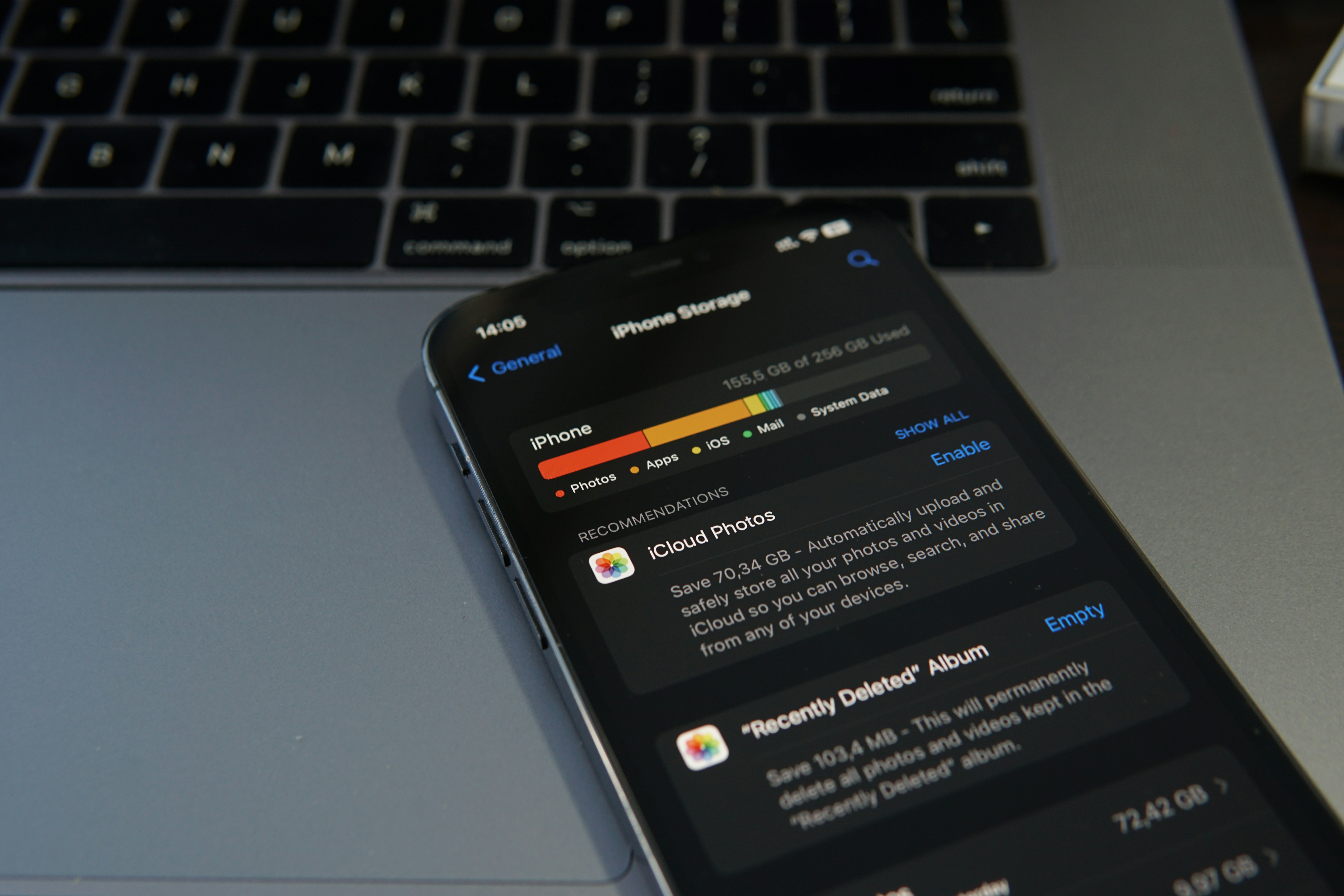
    Another method involves identifying large files or folders that may not be essential to your day-to-day activities. Windows provides options to view storage usage by categories, allowing users to sort their files by size. Take this opportunity to archive or delete files, particularly large videos, installations, or duplicate images that may have been inadvertently saved in multiple locations.

    Utilizing external storage devices or cloud services is also an effective way to free up disk space. By transferring significant files that are not frequently accessed to these mediums, you can maintain a more organized and efficient local storage environment while still having access to your data when needed.

    Lastly, remember to uninstall programs that you don’t use or have outgrown. Many PCs host applications that are no longer necessary, consuming valuable disk space and potentially slowing down your system. Periodically reviewing and managing your installed programs can contribute significantly to maintaining optimal performance on your Windows PC.

    Reduce Visual Effects and Enhance Performance

    Windows operating systems are equipped with various visual effects that are designed to enhance user experience. However, on older machines or systems with limited hardware resources, these effects can significantly impede performance. Examples of such effects include animations, shadows, and transparency, which can consume valuable system memory and processing power. For users seeking to optimize their Windows PC, reducing or disabling these visual effects can lead to noticeable improvements in speed and responsiveness.

    To adjust these settings, users can navigate to the Performance Options menu. This can be accessed by right-clicking on the “This PC” icon, selecting “Properties,” and then choosing “Advanced system settings.” In the Advanced tab, there is a section labeled “Performance,” from which users can click on the “Settings” button to open the Performance Options window.

    Within the Performance Options, users will find several options to choose from. The first is the option to adjust for best appearance, which enables all visual effects. Alternatively, users can select “Adjust for best performance” to disable all effects entirely, or they can choose “Custom” to selectively disable specific features while retaining others. This customization allows users to find a balance between aesthetics and performance based on their individual needs.

    Common visual effects to consider disabling include fading menus, slide shows, and animations when minimizing and maximizing windows. By focusing on these adjustments, users will likely experience a key enhancement in their system’s overall performance, particularly when running resource-intensive applications or multitasking. This simple modification can be crucial for maintaining a smooth and effective computing experience on a Windows PC.

    Running Disk Cleanup Regularly

    Maintaining the performance of your Windows PC requires attention to routine tasks, one of which is conducting a disk cleanup. The built-in disk cleanup tool is an effective way to free up space, eliminate unnecessary files, and optimize your system’s performance. Regularly running this tool can significantly enhance the speed and efficiency of your computer.

    To initiate the disk cleanup process, navigate to the Start menu, type “Disk Cleanup” in the search bar, and select the tool from the results. After launching the application, you’ll be prompted to choose which drive to clean, typically the C: drive, where the operating system resides. After selecting the drive, the tool will scan for files that can be safely removed.

    The disk cleanup utility identifies various types of files, including temporary files, system files, Recycle Bin contents, and thumbnails. It also offers the option to delete previous Windows installations, which can take up significant space. It is crucial to review each category carefully, considering what files you truly want to delete. Selecting all unnecessary items will contribute to the restoration of valuable storage space.

    Performing disk cleanup not only generates free space but also enhances the overall performance of your PC. As files accumulate over time, they can slow down your system’s operations. By routinely clearing out these files, you minimize clutter, thereby streamlining processes and boosting responsiveness. It is advisable to schedule these cleanup sessions monthly or quarterly, depending on your usage habits, ensuring that your Windows PC remains in optimal working condition.